Step 1: Log in to Zapier
Go to Zapier and log in to your account.
If you don’t have an account yet, click Sign Up to create one.
Step 2: Create a New Zap
Click the Create Zap button in the upper left corner of your dashboard.
Give your Zap a name in the Zap Name field.
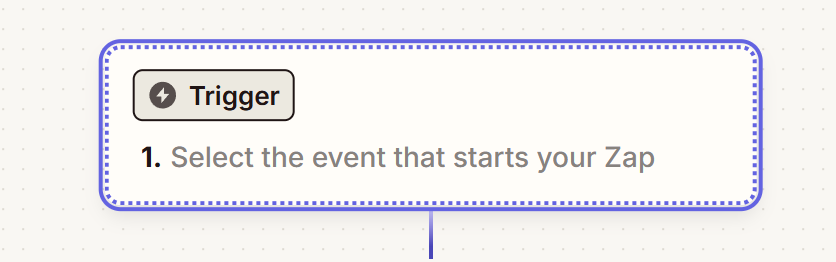
Step 3: Set Up the Trigger
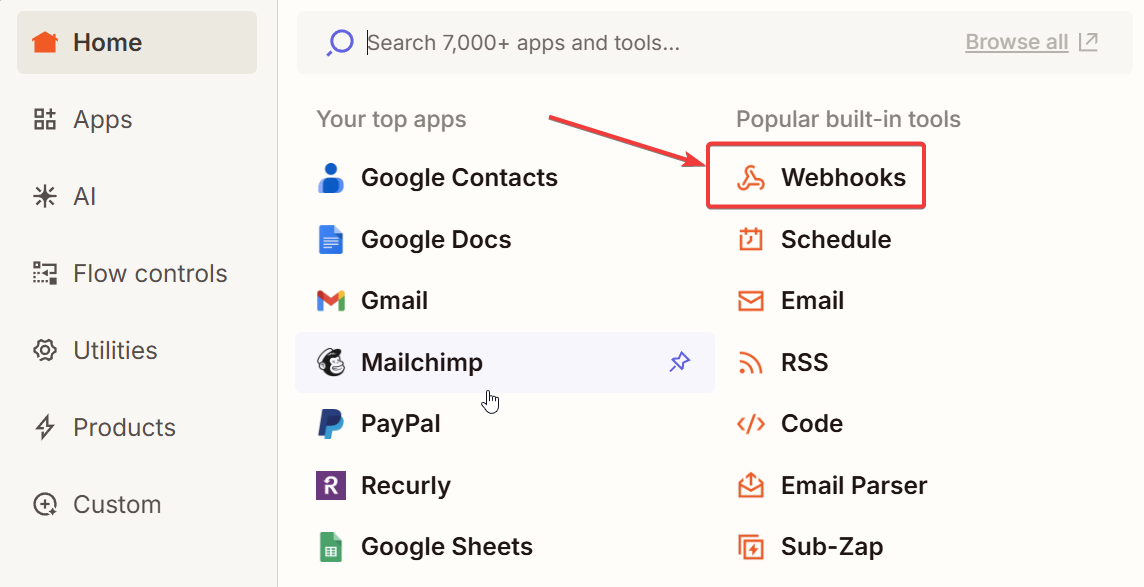
In the Trigger section, search for and select Webhooks by Zapier.
Choose Catch Hook as the trigger event.
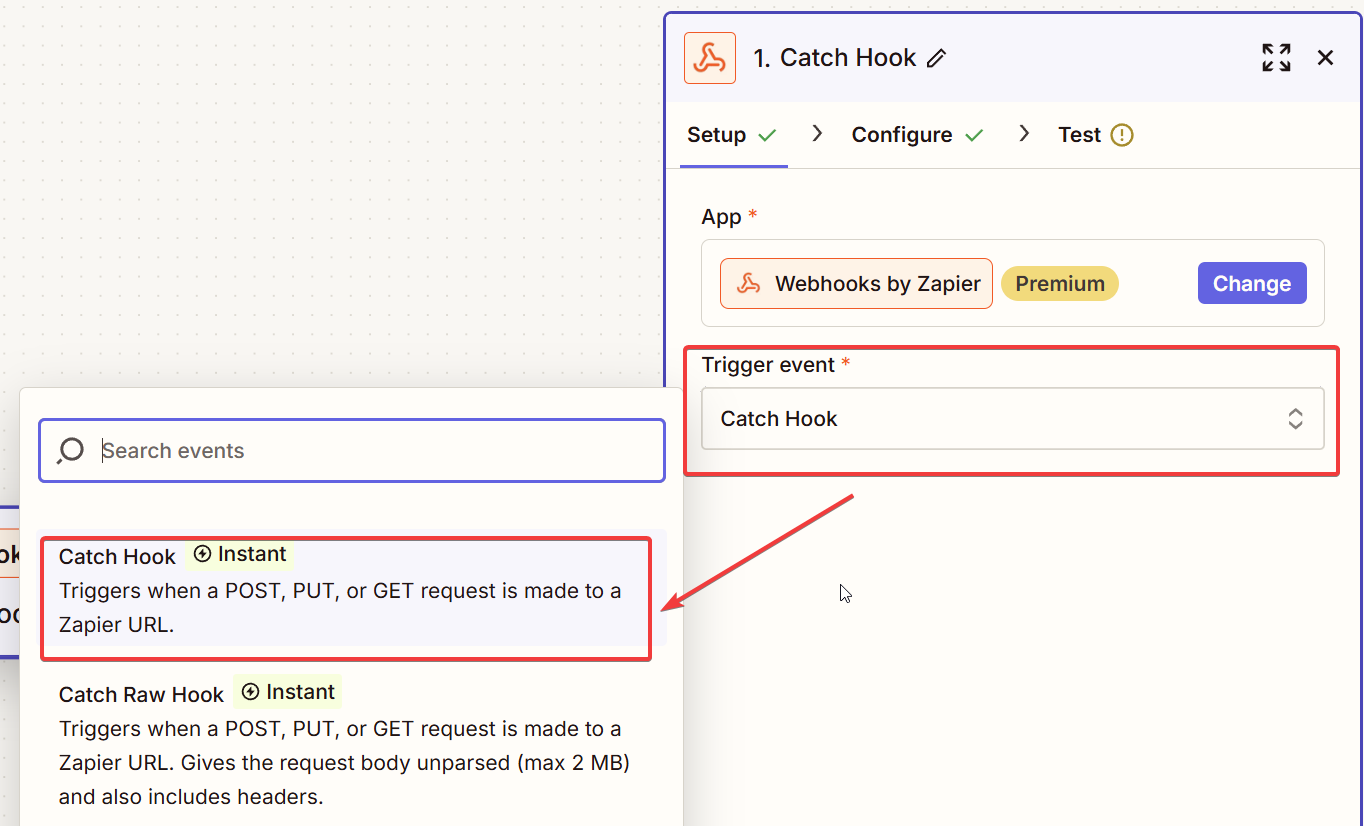
Click Continue.
Step 4: Copy Your Webhook URL
Skip choosing a child key if you want to get the entire webhook payload event send by LeadCalculators
Zapier will display a Custom Webhook URL.
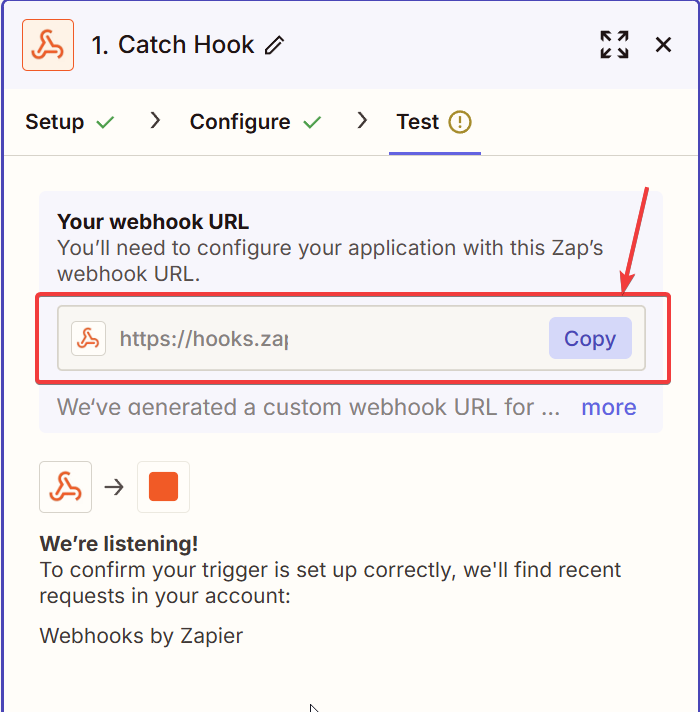
Click the Copy button next to the URL.
Save this URL — it’s what you’ll use in your app or website to send data to Zapier.
Step 5: Paste the webhook URL in your calculator Zapier settings
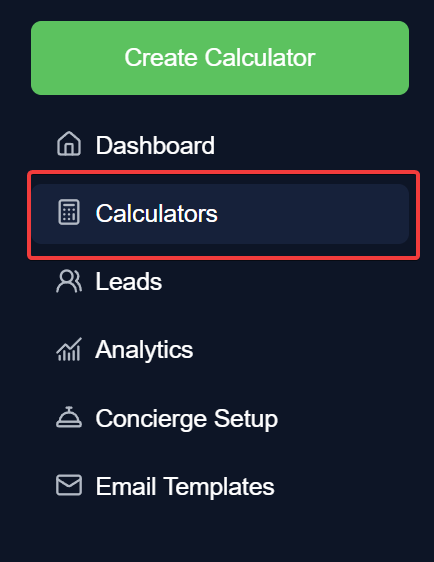
- Go to Lead Calculators Dashboard > Calculators:
- Click the Zapier button in the Actions column of the calculator you want to connect to Zapier

- Select which lead data should be sent to Zapier

- Then paste the webhook URL you copied in STEP 4
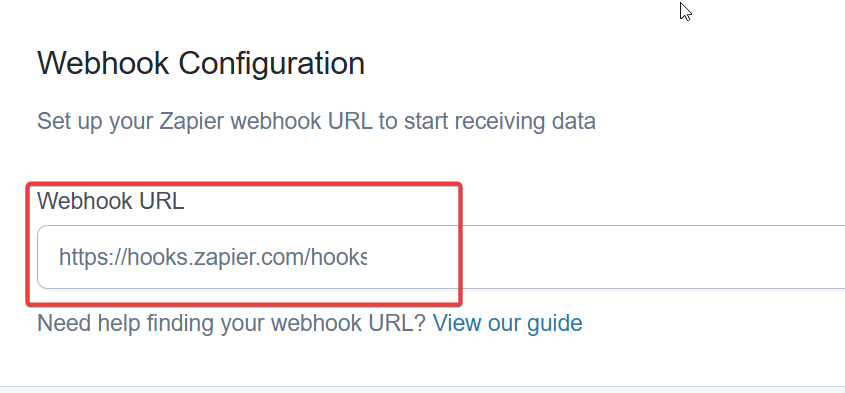
- Click the Test Connection button to send a test data to your webhook endpoint URL in Zapier.
Step 6: Set Up the Action
Go back to your Zapier dashboard.
Click the Test Trigger
After the webhook successfully catches test data from STEP 5, set up the Action step for your Zap (for example, send the data to Google Sheets, email, or your CRM).
Configure the action fields and click Continue.
Finalize your Zap, save it and activate it.
Was this article helpful?
That’s Great!
Thank you for your feedback
Sorry! We couldn't be helpful
Thank you for your feedback
Feedback sent
We appreciate your effort and will try to fix the article